
Home Workspace #

The Home workspace provides the primary tools for editing and formatting document content. It allows users to modify text, organize paragraphs, and apply consistent formatting without switching to another menu.
Main Features #
Undo/Redo
Undo the most recent action or restore an action that was previously undone.
Clipboard
Cut, copy, and paste content, or copy formatting from one section of the document to another.
Font
Customize the appearance of text, including:
- Font type and size
- Bold, italic, and underline
- Superscript and subscript
- Text color and highlighting
- Clear text formatting
Paragraph
Manage paragraph structure and alignment, including:
- Text alignment
- Bulleted and numbered lists
- Indentation
- Line and paragraph spacing
- Borders and shading
- Text direction and paragraph positioning
Styles
Apply predefined styles such as Normal, No Spacing, Heading 1, and Heading 2. Using styles helps maintain consistent formatting and creates a clear document structure.
The Home workspace is recommended for general writing, editing, and document-formatting tasks.
Insert Workspace #

The Insert workspace provides tools for adding visual elements, references, media, mathematical content, and page components to a document.
Main Features #
Pages
Use Breaks to control the document structure by inserting page, section, or column breaks.
Tables
Insert tables to organize information into rows and columns.
Illustrations
Add visual content to improve the presentation of the document:
- Image – Insert an image from a file.
- Drawing – Create or add shapes and custom drawings.
- Chart – Present data using graphical charts.
Media
Insert video content into the document.
Links
Connect document content to other resources:
- Link – Add a hyperlink to a webpage, file, or document location.
- Cross-reference – Create a reference to another section, heading, figure, table, or item within the document.
- Crossmark – Add Crossmark information for verifying publication status and document updates.
Comments
Add comments for review, feedback, or collaboration without changing the main document content.
Equations and Symbols
Insert mathematical and scientific content:
- LaTeX – Create mathematical equations using LaTeX syntax.
- Symbol – Insert special characters and mathematical symbols.
Text
Add special text elements:
- Displayed Quote – Insert a quotation as a separate, emphasized block.
- Horizontal Line – Add a horizontal separator between sections.
Header and Footer
Add recurring information at the top or bottom of document pages, such as titles, author names, dates, or publication details.
Page Numbers
Insert and configure automatic page numbering throughout the document.
The Insert workspace is used whenever additional content or structural elements need to be added beyond standard text.
Layout Workspace #

The Layout workspace provides tools for controlling the page structure, document spacing, and page background. It is used to prepare a consistent and publication-ready document layout.
Main Features #
Page Setup
Configure the overall page structure:
- Margins – Adjust the spacing between the document content and the page edges.
- Orientation – Switch the page layout between portrait and landscape.
- Size – Select the required paper size.
- Columns – Arrange document content into one or multiple columns.
Paragraph
Control paragraph positioning and spacing:
- Indent Left – Set the distance between the paragraph and the left margin.
- Indent Right – Set the distance between the paragraph and the right margin.
- Space Before – Add spacing before the selected paragraph.
- Space After – Add spacing after the selected paragraph.
Page Background
Use Watermark to place text or an image behind the document content. Watermarks can be used to indicate document status, ownership, confidentiality, or branding.
The Layout workspace is recommended for adjusting the document’s page format, spacing, and visual structure before publication or export.
References Workspace #
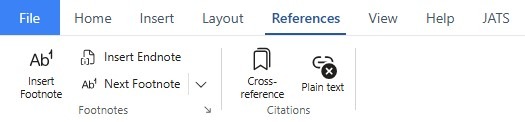
The References workspace provides tools for adding footnotes, endnotes, citations, and references within the document. These features help organize supporting information and connect related document elements.
Main Features #
Footnotes
Add supplementary information or source details at the bottom of the current page.
- Insert Footnote – Add a numbered note at the bottom of the page.
- Next Footnote – Navigate to the next footnote or endnote in the document.
- Insert Endnote – Add a note that appears at the end of the document or section.
Citations
Create references between document content and related information:
- Cross-reference – Link text to another element within the document, such as a heading, table, figure, or section.
- Plain Text – Convert citation information as regular text without an active reference connection.
The References workspace is recommended for managing academic notes, supporting information, and internal document references.
References Workspace #
The References workspace provides tools for adding footnotes, endnotes, citations, and references within the document. These features help organize supporting information and connect related document elements.
Main Features #
Footnotes
Add supplementary information or source details at the bottom of the current page.
- Insert Footnote – Add a numbered note at the bottom of the page.
- Next Footnote – Navigate to the next footnote or endnote in the document.
- Insert Endnote – Add a note that appears at the end of the document or section.
Citations
Create references between document content and related information:
- Cross-reference – Link text to another element within the document, such as a heading, table, figure, or section.
- Plain Text – Convert or insert citation information as regular text without an active reference connection.
The References workspace is recommended for managing academic notes, supporting information, and internal document references.
View Workspace #
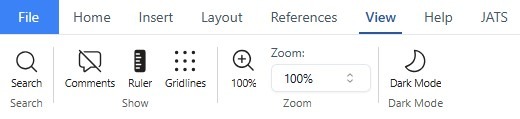
The View workspace provides tools for controlling how the document is displayed in the editor. These settings help users navigate, review, and work with document content more comfortably without changing the document itself.
Main Features #
Search
Find specific words, phrases, or content within the document.
Show
Control additional editing and navigation elements:
- Comments – Show or hide comments added to the document.
- Ruler – Display the ruler for adjusting margins, indentation, and tab positions.
- Gridlines – Show or hide visual gridlines to assist with content alignment.
Zoom
Adjust the document’s display size:
- 100% – Return the document to its default viewing scale.
- Zoom Level – Select or enter a custom zoom percentage.
Dark Mode
Switch the editor to a darker interface to reduce screen brightness and improve viewing comfort in low-light environments.
The View workspace changes only how the document appears in the editor and does not affect the document’s actual formatting or exported output.
JATS Workspace #

The JATS workspace is used to identify and tag document content according to the Journal Article Tag Suite (JATS) structure. It allows users to prepare JATS XML while continuing to edit the article and arrange its PDF layout in the same workspace.
Main Features #
Inspect
Open the inspection panel to view the JATS tags currently assigned to the document. This helps users review the article structure and confirm that each section has been tagged correctly.
Real-time Validator
Validate the document structure using the selected JATS publishing standard:
- PMC Style Checker – Checks the document against requirements commonly used for PubMed Central.
- SciELO Style Checker – Checks the document against SciELO publishing requirements.
Validation runs during the tagging process, helping users identify structural issues before exporting the article.
Mark as JATS Element
Assign the selected content to a main JATS article section:
- Abstract – Marks the article abstract.
- Body – Marks the main article content, such as the introduction, methods, results, and discussion.
- Reference – Marks the reference list or bibliography.
- Ignore JATS – Excludes the selected content from the generated JATS structure.
Auto-tag
Automatically detects and applies suitable JATS elements to selected content, reducing the amount of manual tagging required.
Mark as Statement
Identify publication statements and other supporting information, such as:
- Data Availability
- Ethics Statement
- How to Cite
- Biography
- etc.
- Custom Statement
Select None (not a statement) when the content is not part of a publication statement.
How to Tag Document Content #
- Select the complete content section, starting from the beginning of the first paragraph and ending at the final paragraph.
- Open the Mark as JATS Element menu.
- Choose the appropriate element, such as Abstract, Body, or Reference.
- For publication statements, use the Mark as Statement menu and select the relevant statement type.
- Use Inspect to review the applied tags and confirm the resulting JATS structure.
- Check the real-time validator for any structural warnings or errors.
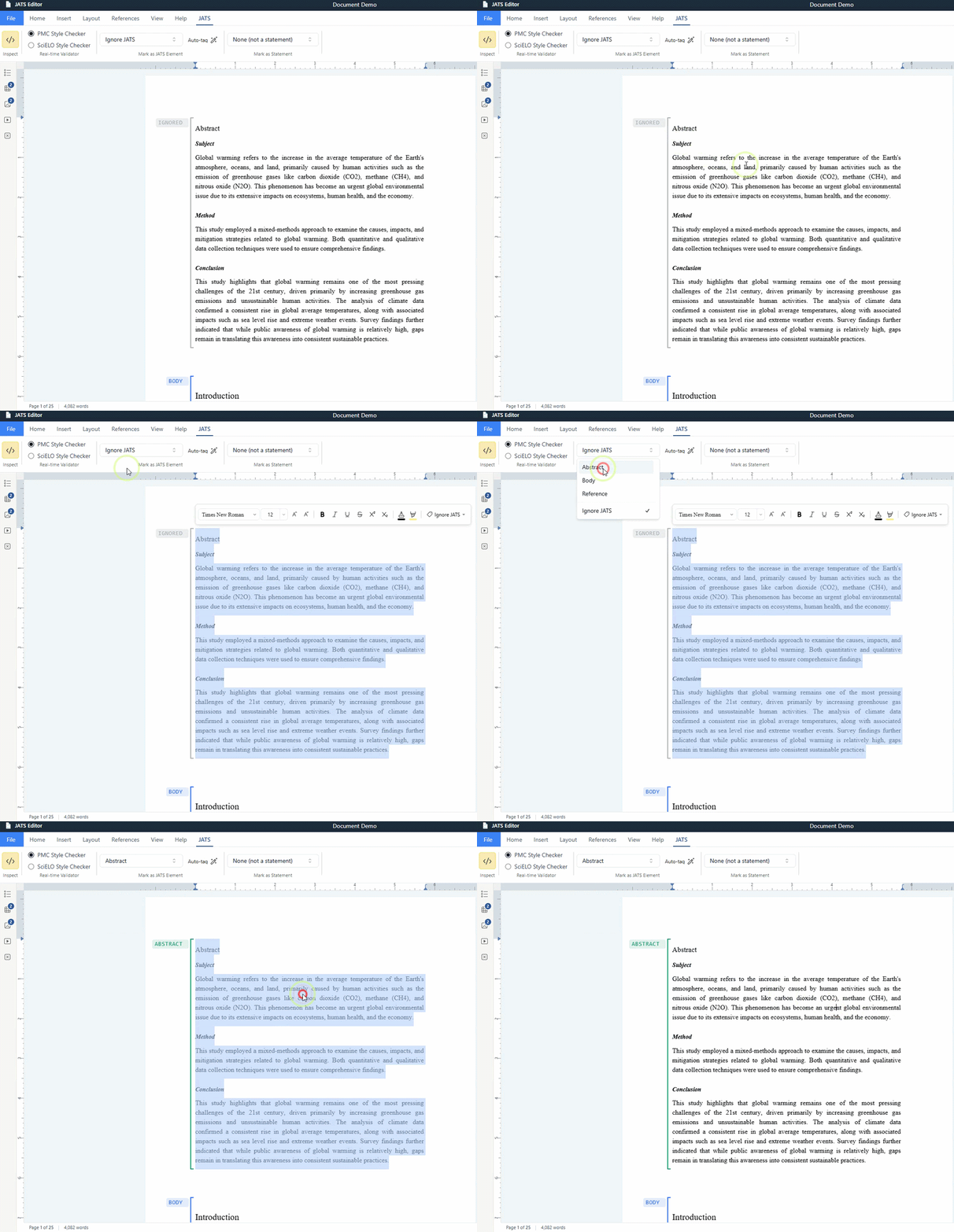
The JATS workspace supports a unified production workflow. Users can format the article for PDF publication while simultaneously tagging its content for JATS XML output.


