
Add References with DOCX format #
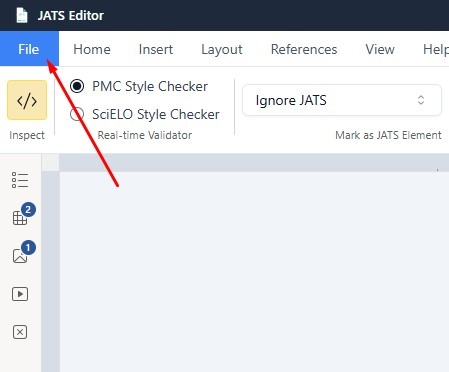
1. Open the File menu in JATS Editor.
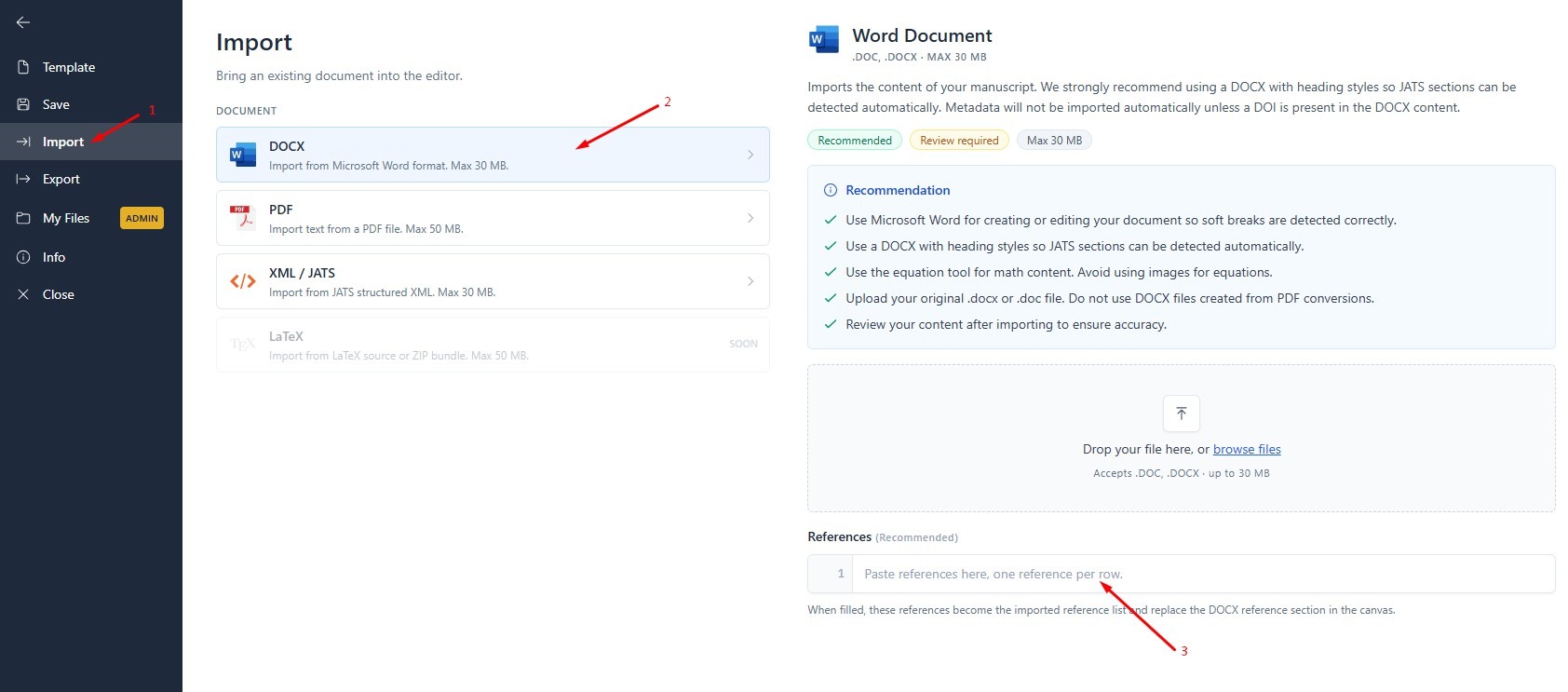
2. Select Import and choose DOCX as the import format.
Prepare the reference list in the Word document by placing each reference in a separate paragraph and click ‘Enter’
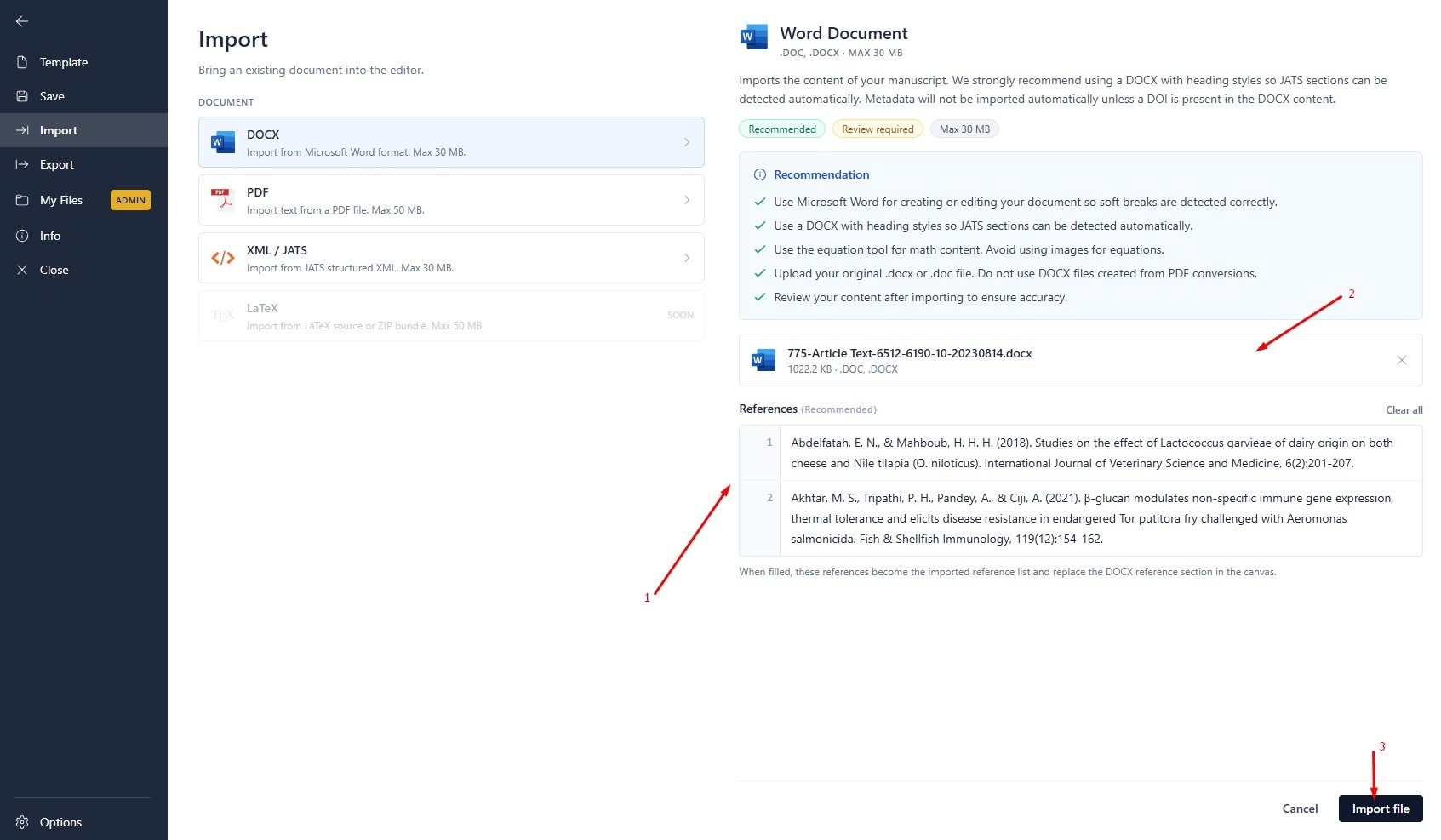
3. Select or upload the prepared DOCX file. Click Import File to begin the process.
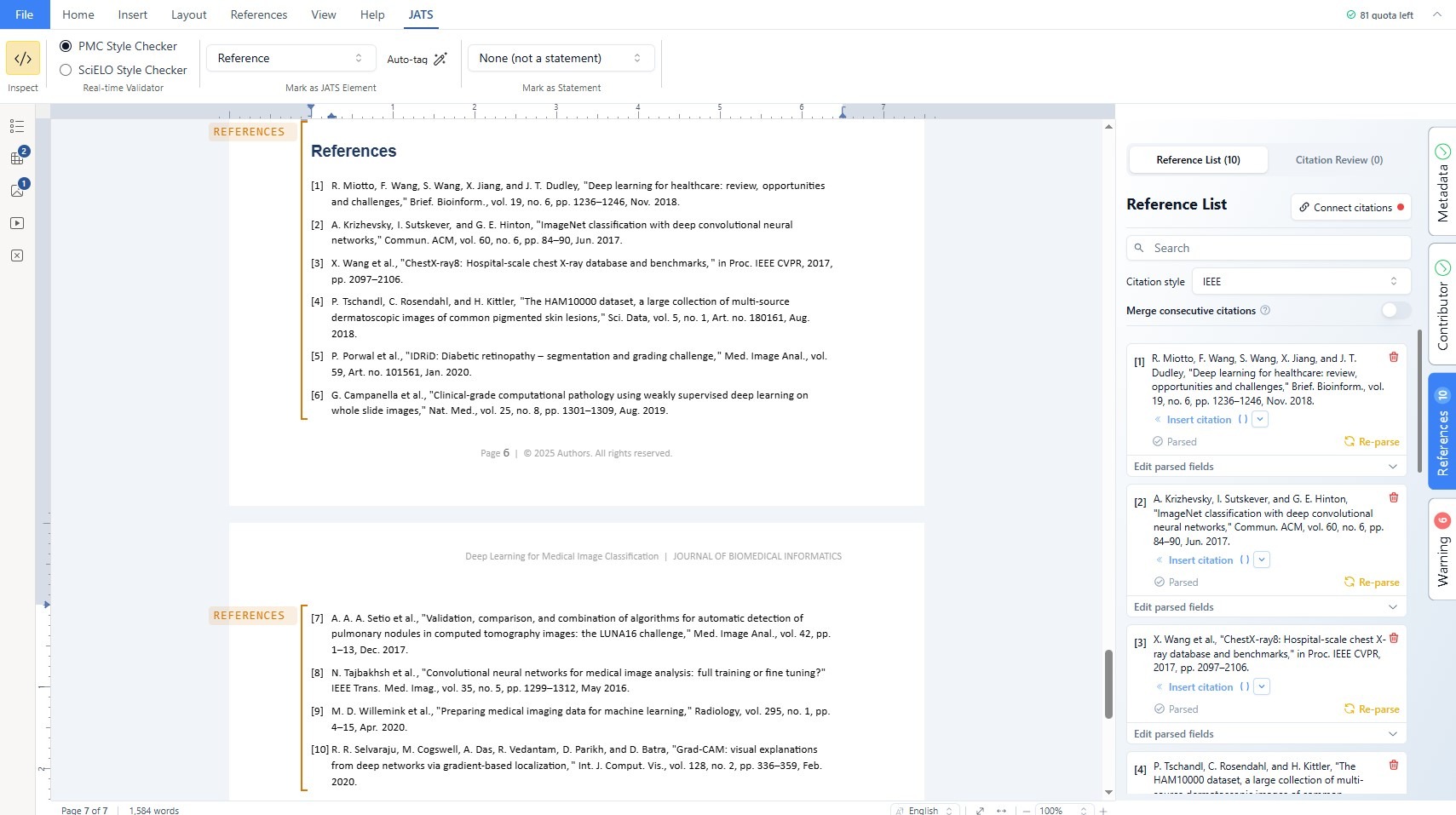
After the import is complete, review the reference section and confirm that every reference has been identified as a separate entry.
Manually Tagging the Reference Section #
This method can be used when a document has been imported successfully (Import from PDF, DOCX, and etc), but the reference list is not automatically recognized as a JATS reference element. You can manually mark the entire reference section directly from the editor.
How to Mark References Manually #
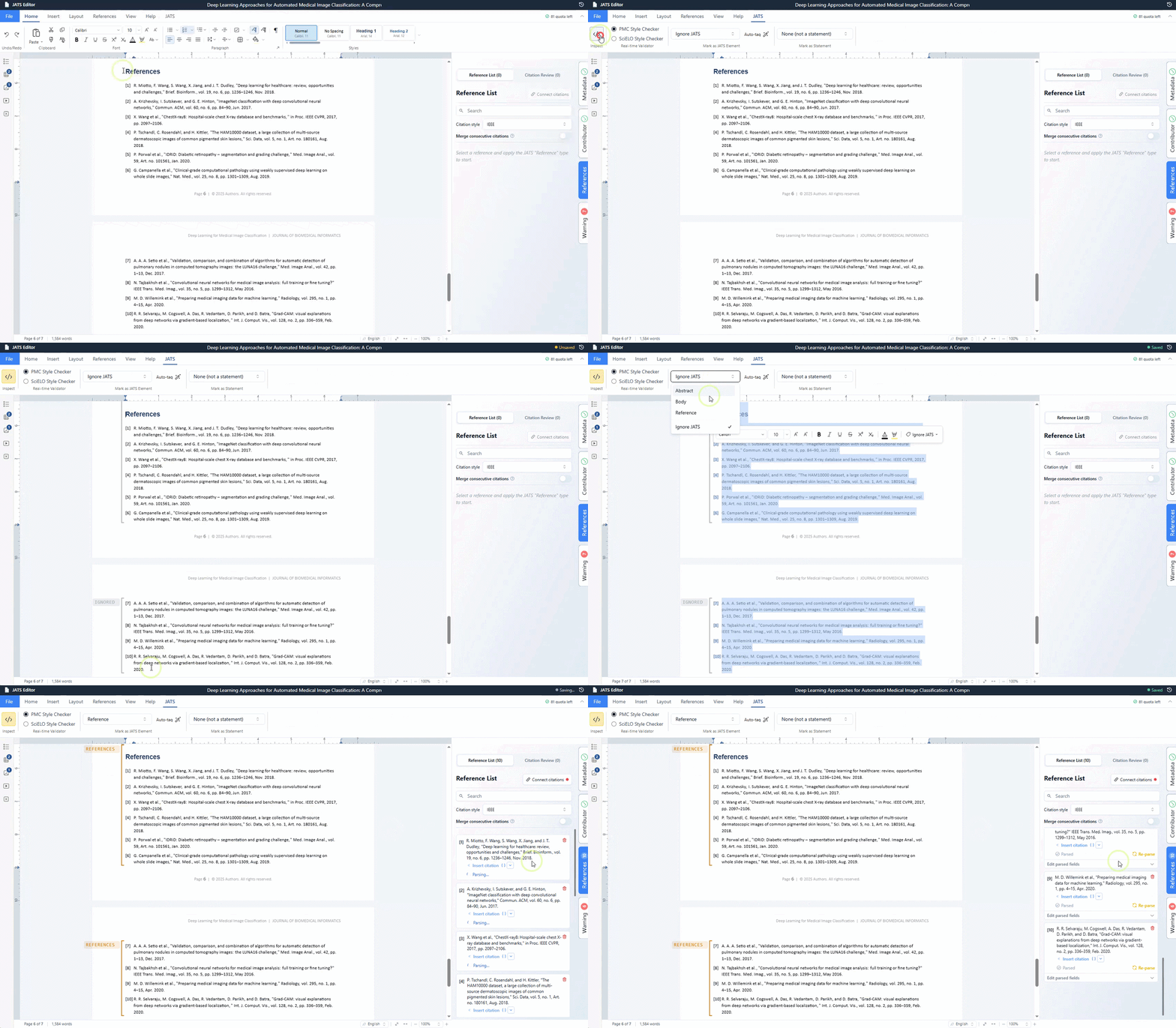
- Locate the reference list in the imported document.
- Select the content starting from the first reference and continue to the end of the final reference.
- Open the JATS tab.
- In the JATS Element menu, select References.
- Wait for JATS Editor to apply the reference tag to the selected content.
Editing Parsed References and Re-parsing #
After a reference list has been imported or tagged, you can review and correct each reference from the References tab. JATS Editor is designed to update recognized reference data automatically when you add or edit a reference in the article. However, automatic updating depends on whether the edited content can be recognized by the parser. If a field remains unchanged, appears incomplete, or is not read correctly, use Edit parsed fields to correct it manually.
When are reference changes updated automatically? #
Changes made to a reference in the main reference section are normally reflected in the reference record shown in the References tab. For example, if you correct a title, author name, publication year, journal name, volume, issue, page range, or DOI, JATS Editor may recognize the change and update the corresponding parsed entry. You should still review the result after editing because a small formatting difference, missing separator, or unusual reference structure can prevent one or more fields from being recognized.
How to use Edit parsed fields #
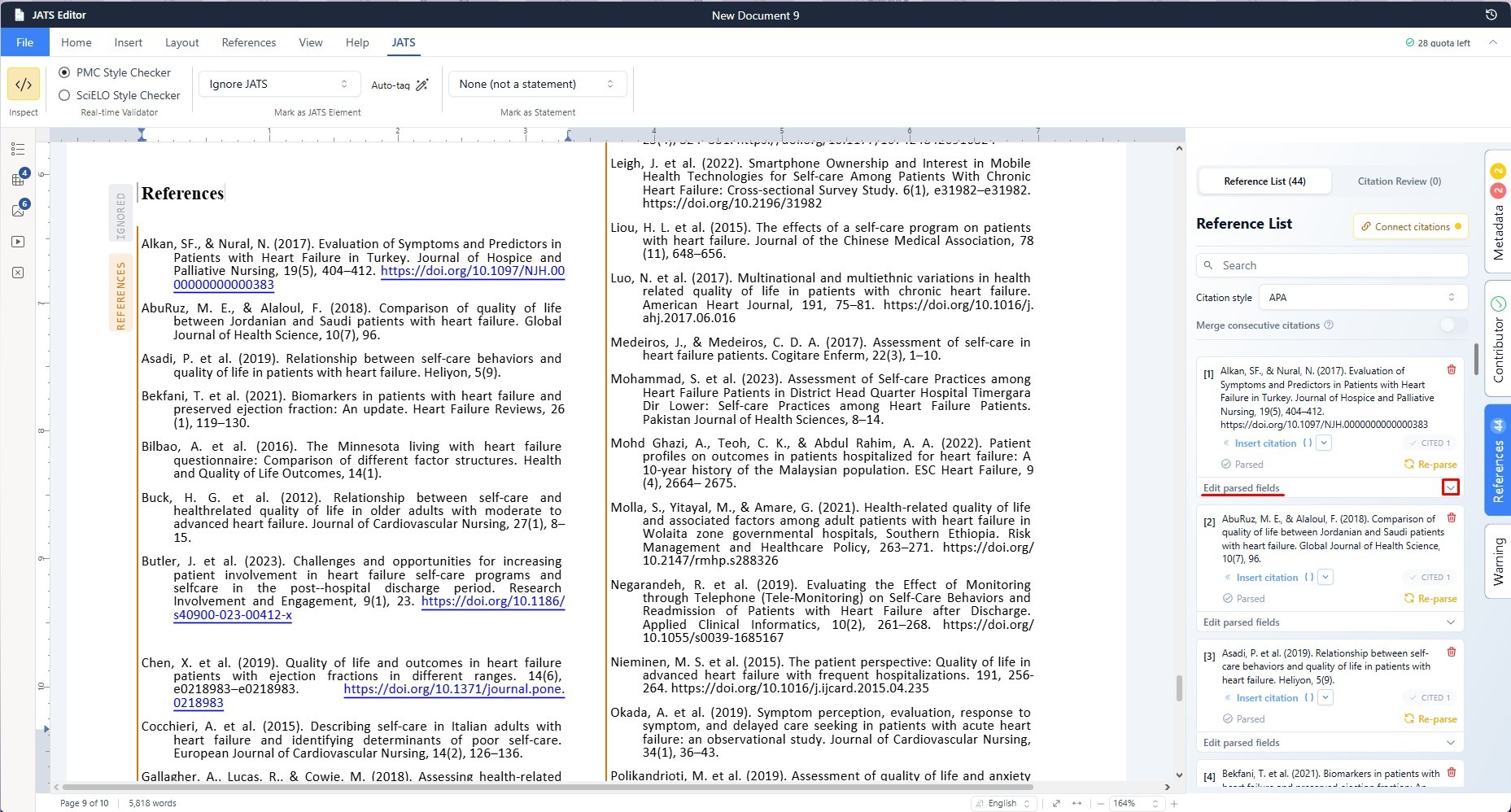
Use Edit parsed fields when the information displayed in the reference panel does not match the source text or when a field was not updated automatically. This feature lets you edit the structured fields of one reference without rewriting the entire reference list.
- Open the References tab and locate the reference that needs to be checked.
- Expand Edit parsed fields for that reference.
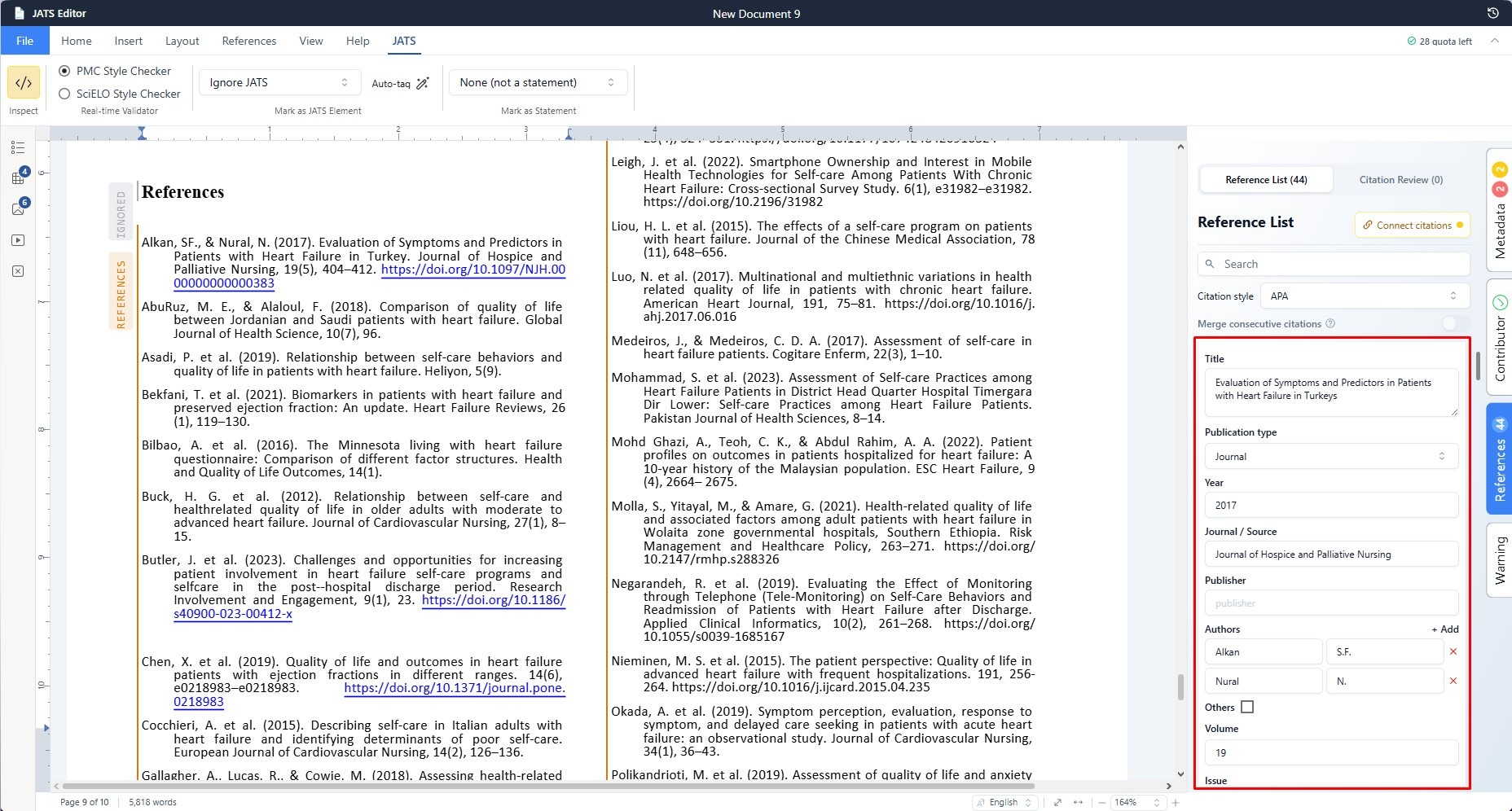
- Select the field that needs to be added or corrected, such as Title, Publication type, Year, Journal / Source, Publisher, Authors, Volume, Issue, page information, or DOI.

- Enter the correct value in the field. Make sure the value belongs to the selected reference and keep names, dates, and identifiers consistent with the source article.
- Review the other fields in the same reference so that the record is complete and internally consistent.
- Close the Edit parsed fields area after finishing your manual changes.
- Click for that reference.
 for that reference.
Closing the editing area only finishes the manual entry. The Re-parse action is the step that asks JATS Editor to read the corrected fields again and rebuild the structured reference data. After re-parsing, check the displayed reference in the panel and in the document to confirm that the title, authors, year, journal, DOI, and other relevant information are correct.
What happens if the reference order changes? #
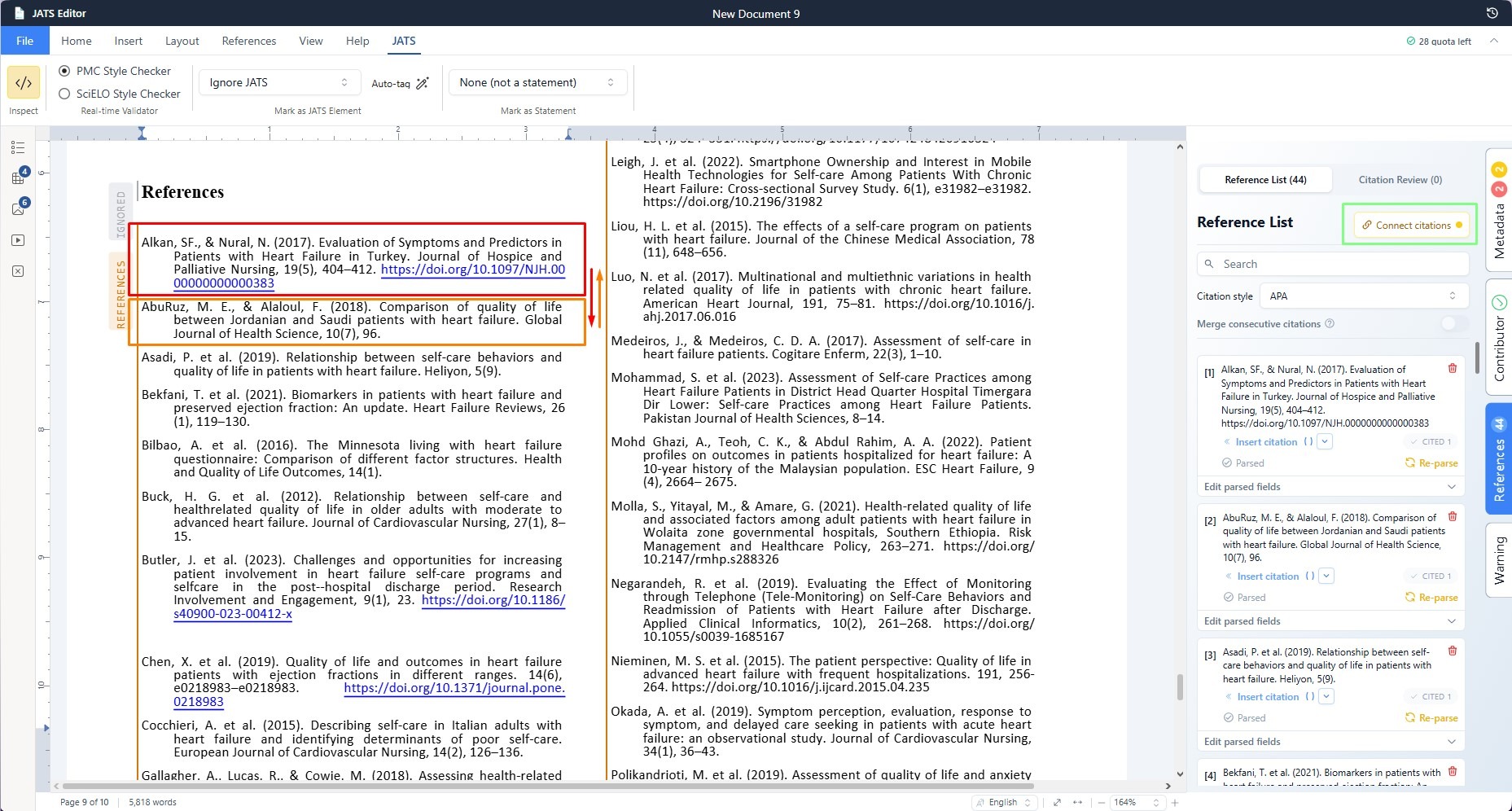
If you move references in the article for example, when reference 1 and reference 2 exchange positions the list shown in the References tab follows the new order automatically. You do not need to renumber every reference manually. The order is generated from the current reference structure in the document.
Although the reference list is reordered automatically, citations that were already connected to the previous order may require attention. A warning can appear in Connect citations because an in-text citation may still be linked to the reference position it had before the reorder. This warning is important: it does not necessarily mean that the reference text is missing, but it indicates that citation connections should be reviewed to prevent a citation from pointing to the wrong source.
Recommended check after editing or reordering #
- Confirm that the intended reference is selected before editing its parsed fields.
- Check the title, authors, year, journal or source, and DOI after saving a manual correction.
- Close Edit parsed fields and click Re-parse before moving to another reference.
- Verify that the reference list order in the document matches the order in the References tab.
- Open Connect citations when a reorder warning appears.
- Reconnect or update affected in-text citations so each citation points to the correct reference.
Following these steps keeps the reference metadata and citation links synchronized. It also reduces the risk of exporting JATS XML with incomplete reference fields or citations connected to the wrong reference.
Merging Consecutive Citations in IEEE Style #
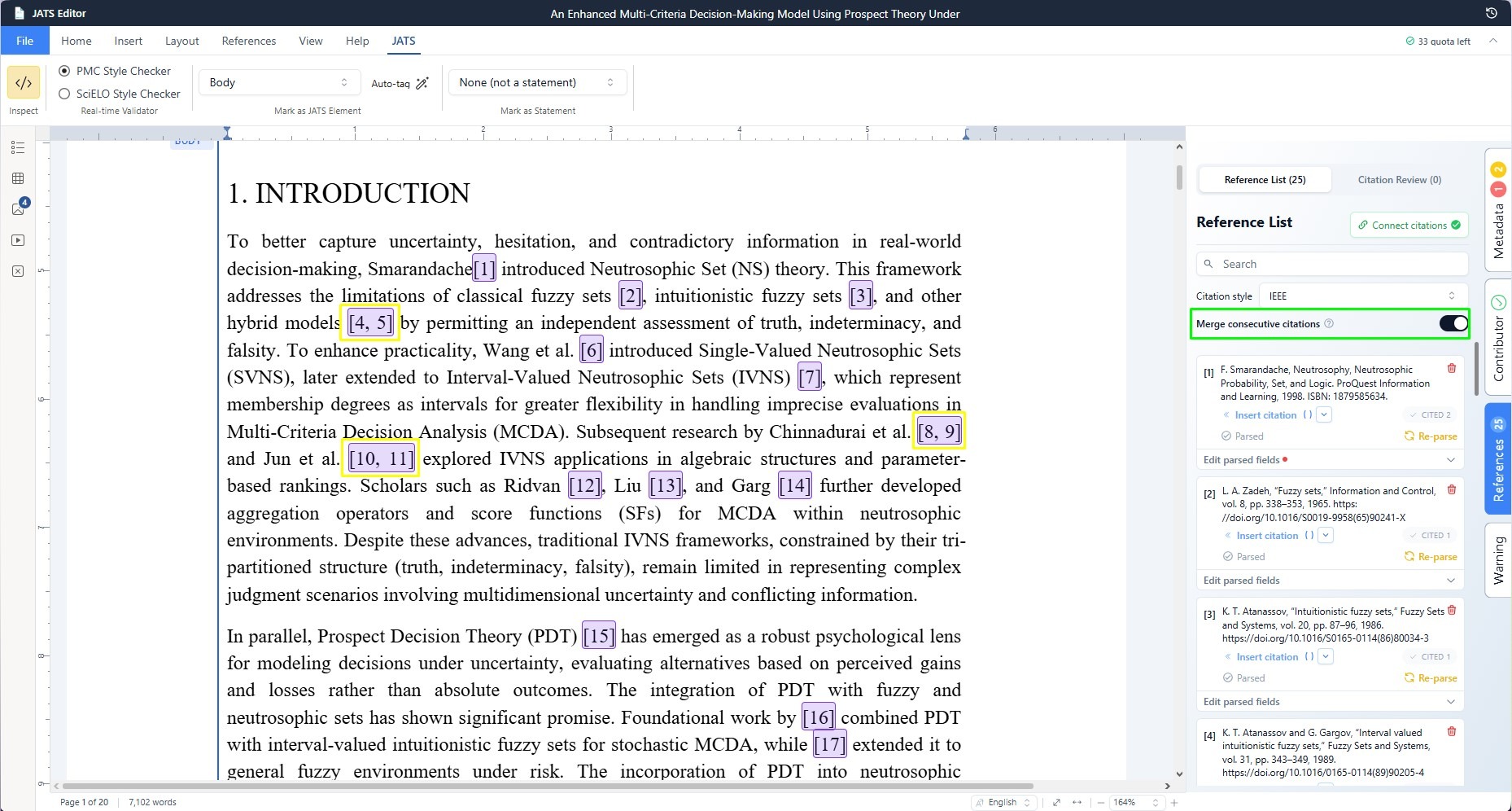
JATS Editor includes a Merge consecutive citations option for articles that use the IEEE citation style. This option is useful when several sources are cited together and their reference numbers appear in a continuous sequence. Instead of displaying each citation as a separate bracket, JATS Editor groups the consecutive citation numbers into one citation set according to the selected IEEE formatting.
What does “consecutive” mean? #
Consecutive citations are references that follow one another in the citation sequence. For example, citations such as [4] and [5] are consecutive because the reference numbers are adjacent. When the merge option is enabled, JATS Editor can display them as one combined citation group, such as [4, 5], or in the exact combined format defined by the active IEEE style.
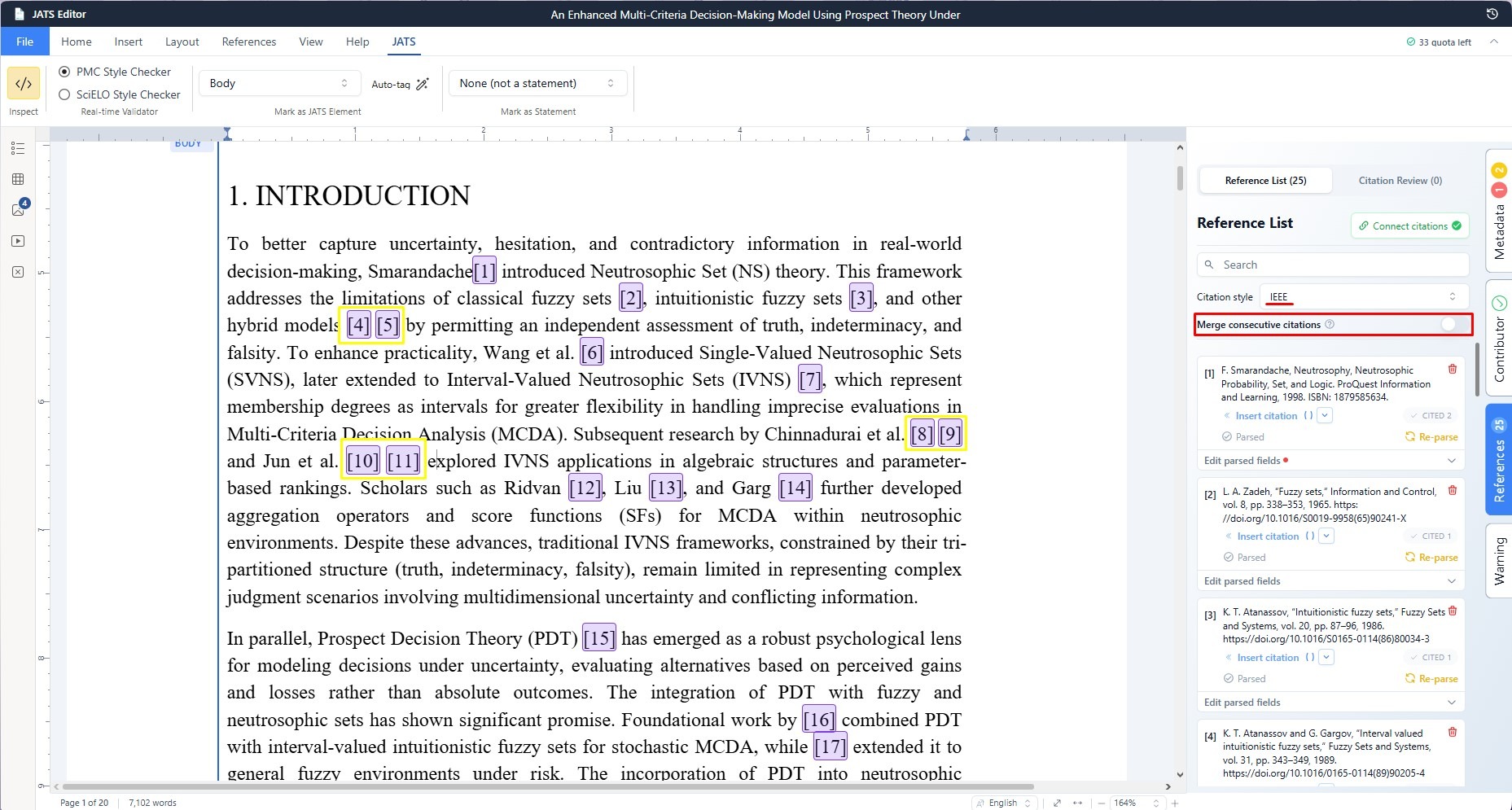
This option does not merge unrelated or non-consecutive citations. A citation containing [4] and [7] should remain separate because references 5 and 6 are not part of that citation sequence. The merge feature changes the presentation of connected citation markers; it does not combine the underlying reference records or delete any references from the reference list.
How to enable Merge consecutive citations #
- Open the References tab in JATS Editor.
- Find the Merge consecutive citations setting.
- Turn the setting on.
- Review the article text. Consecutive connected citations should now be displayed as a merged citation group following the active IEEE format.
When should you use this feature? #
Enable the option when the journal or article guidelines require consecutive IEEE citations to appear as a single grouped citation. It is especially helpful when the same sentence refers to several sequential studies, methods, or sources. Merging keeps the paragraph cleaner while preserving the connection between each citation number and its corresponding reference.
Leave the option off when the journal requires every citation marker to remain separate, or when you are still checking the citation connections. Turning the option on does not correct an incorrectly connected citation, so the reference mapping should be verified first.


