
The part of this tutorial will cover in the section of Body in the editor.
Inserting Reference Citation #
1. Select the text or citation you want to link.

2. Open the List Reference section on the right panel
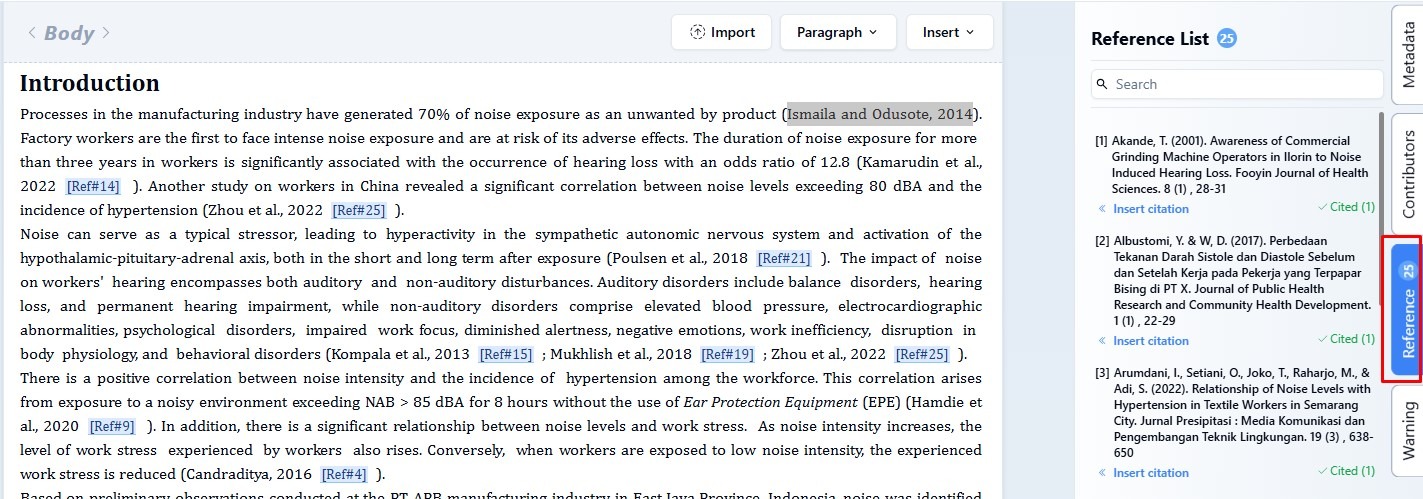
3. Search or type the reference you want to associate with the selected text.

4. Click Insert Reference to apply the link.


Note:
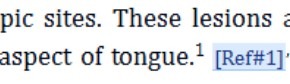
– If you are already using citations in JATS format, you do not need to add manual citations as this may cause duplication of citations. For example:
Inserting Table Citation #
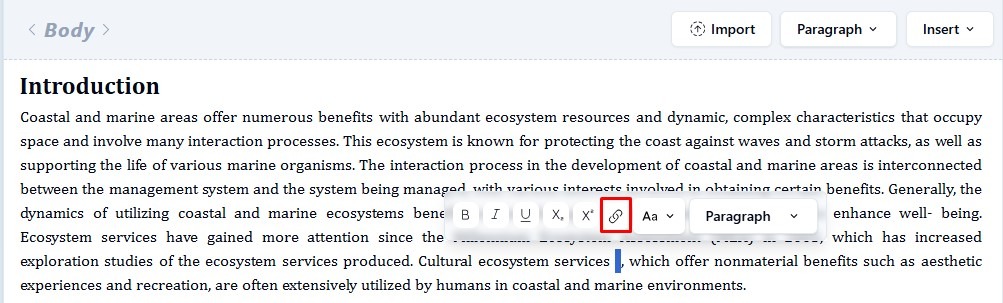
1. Place your cursor on the text where you want to insert the table citation, then select it and click on the icon 
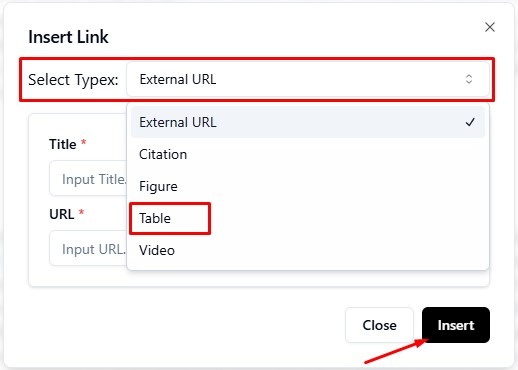
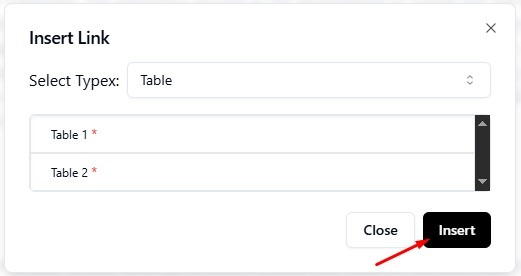
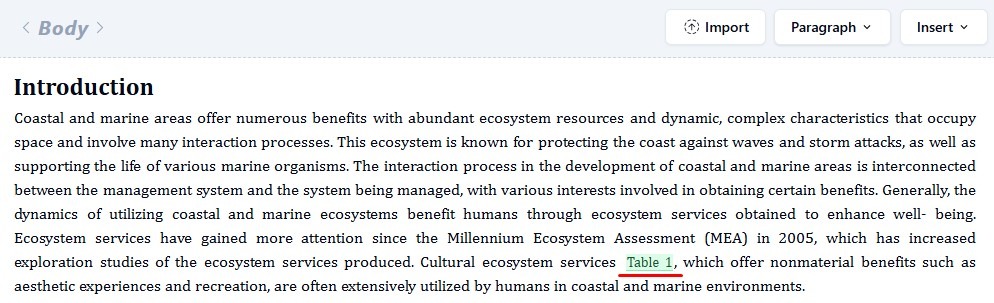
2. In the Select Typex section, select the Table section, then click Insert.
Select Table then click Insert again.
Inserting Figure Citation #
1. Place your cursor on the text where you want to insert the figure citation, then select it and click on the icon

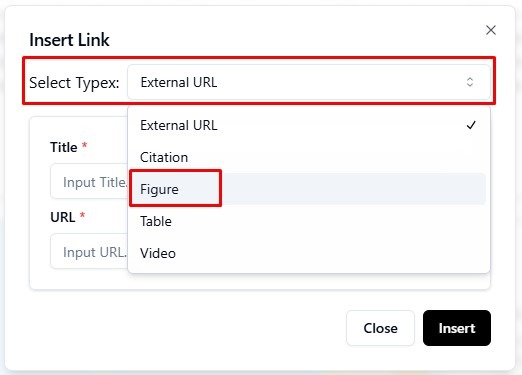
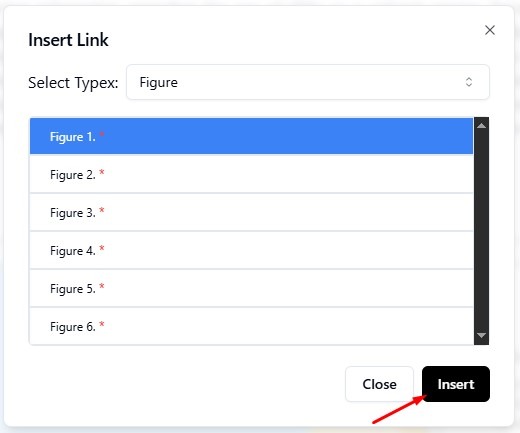
2. In the Select Typex section, select the Figure section, then click Insert.
Select Figure then click Insert again.

Inserting Video Citation #
1. Place your cursor on the text where you want to insert the video citation, then select it and click on the icon
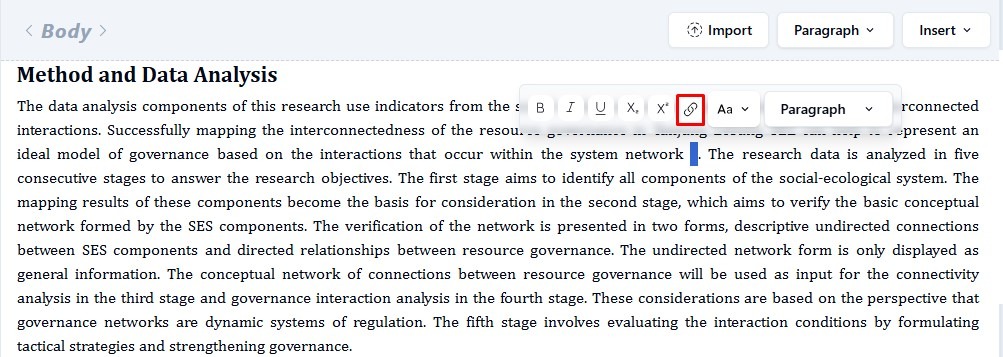
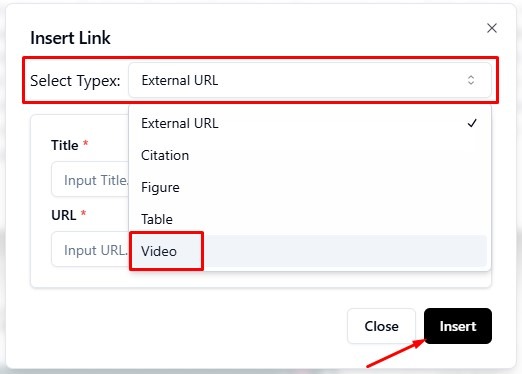
2. In the Select Typex section, select the Video section, then click Insert.
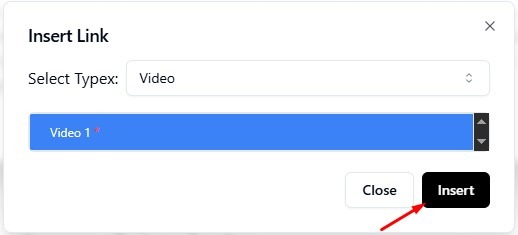
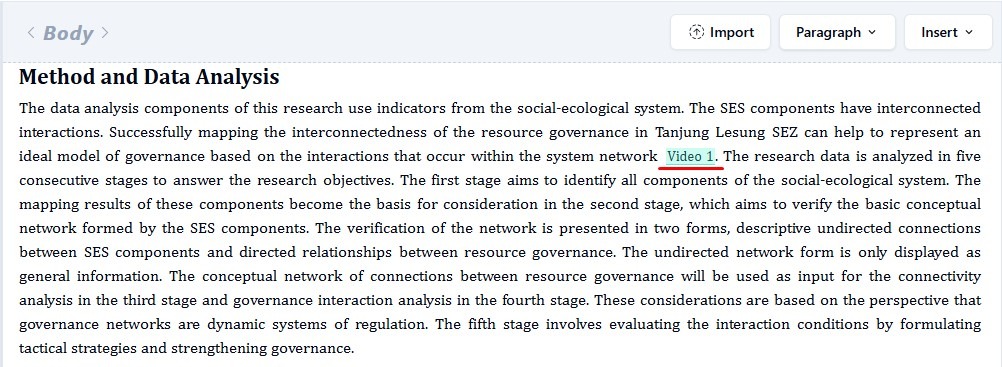
Select Video then click Insert again.
How to Add Citations and Cross-References in JATS Editor & PDF Layout #
The References workspace provides tools for creating citations, internal references, footnotes, and links between different elements of an article. These references are especially important when preparing JATS because they allow figures, tables, equations, bibliography entries, and other document elements to be connected correctly.
References Workspace Tools #
Before adding citations, it is useful to understand the available tools in the References tab.
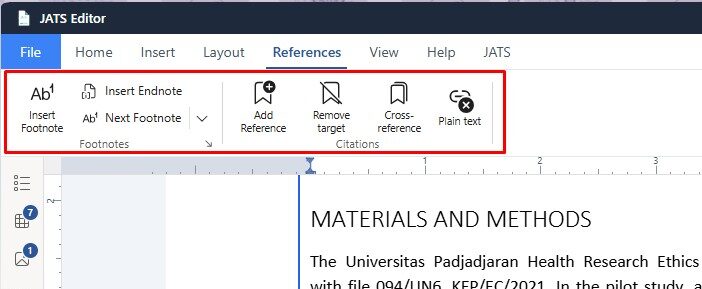
- Insert Footnote
Adds a footnote at the current position in the document. Footnotes can be used for additional explanations or supporting information without adding them directly to the main text.
- Insert Endnote
Adds an endnote that can be placed separately from the main article content.
- Next Footnote
Moves directly to the next footnote or endnote in the document.
- Add Reference
Creates an internal reference target from selected content. This is useful when one part of the article needs to refer to another paragraph or specific piece of content. For example, a paragraph can first be marked as a reference target and then referenced from another location in the document. - Remove Target
Removes a reference target that was previously created with Add Reference.
To remove it:
- Select the content that contains the reference target.
- Open the References tab.
- Click Remove Target.
The content itself will remain in the document, but it will no longer function as a reference target.
- Cross-reference
Creates a connection between the current text and another structured element in the document, such as a figure, table, equation, heading, or reference target.
- Plain Text
Converts linked citation or cross-reference text into normal text. This is useful when you want to keep the displayed text but remove its active reference relationship.
Once converted to plain text, the text will no longer automatically follow or link to its original reference target.
Adding a Cross-Reference #
1. Open the JATS tab.
Click Inspect to display the JATS tags in the document. Keeping Inspect enabled makes it easier to confirm that the figure has been recognized and tagged correctly.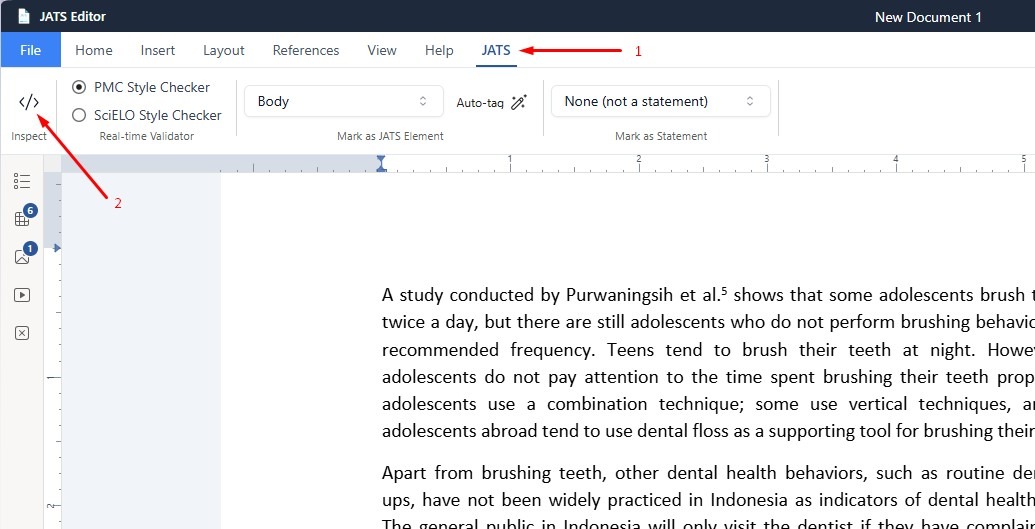
2. Open the References tab.
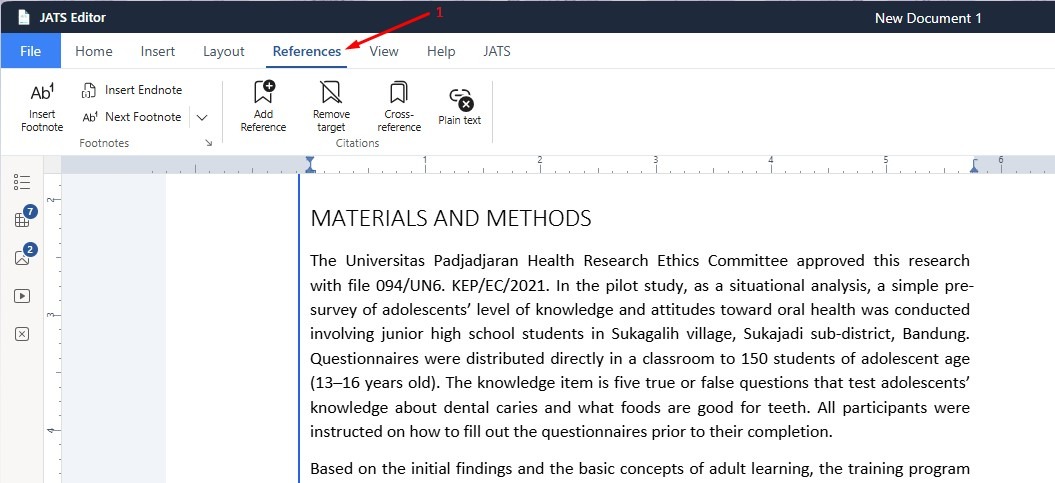
3. Select the text that should become a cross-reference.
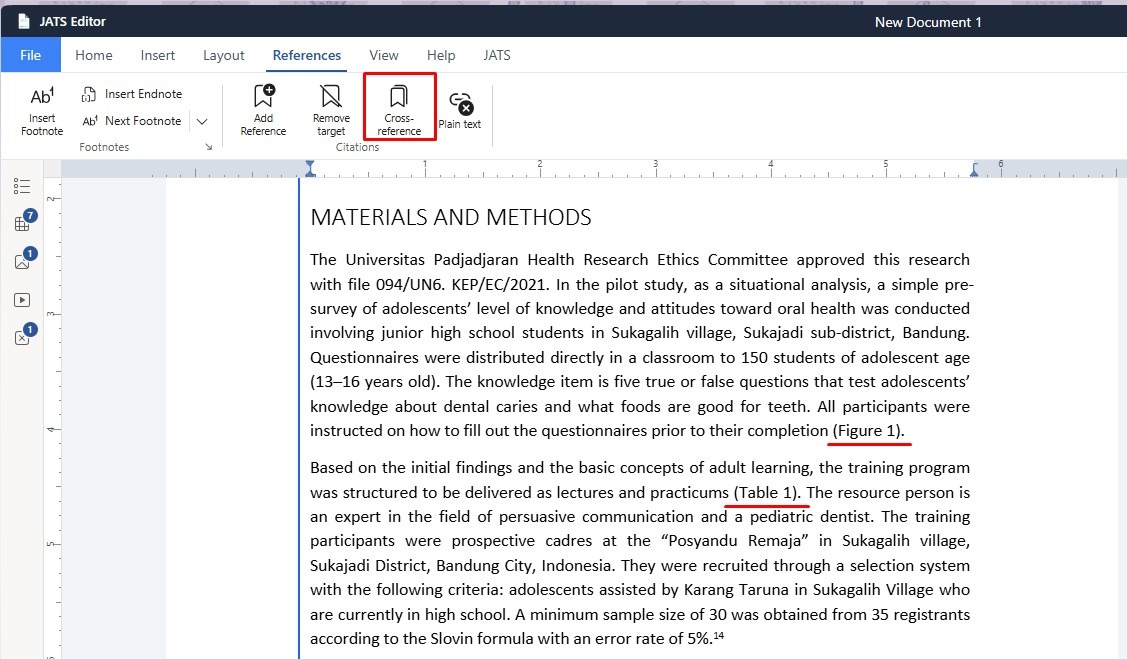
For example:
Figure 1
or:
Table 1
click Cross-reference.
4. The Cross-reference window will appear. Choose the type of element you want to reference. 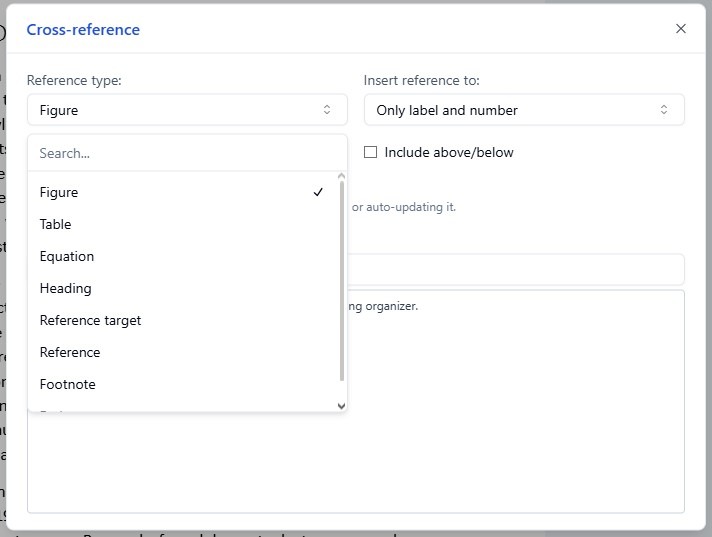
Available reference types may include:
- Figure
- Table
- Equation
- Heading
- Reference Target
- Reference
- Footnote
This means the Cross-reference feature is not limited to figures and tables. It can also be used to create links to other structured elements within the article.
5. You can configure how the reference will be displayed.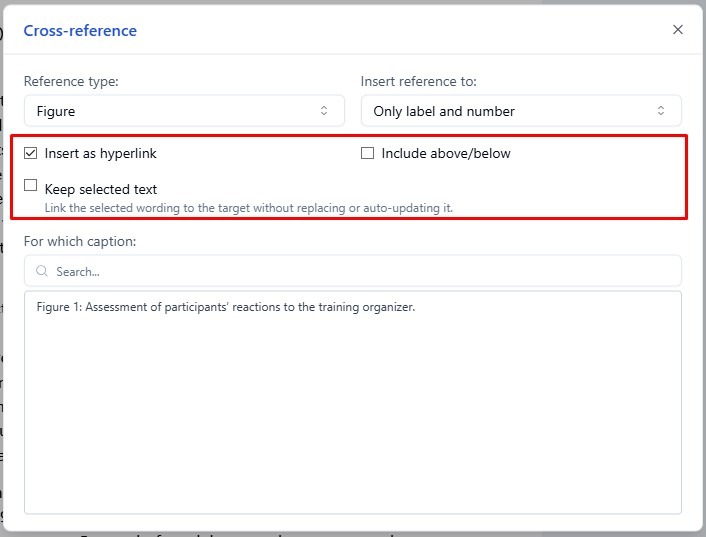
For example, Insert reference to can be set to:
Only label and number
which may display:
Figure 1
instead of the complete figure caption.
Additional options may also be available, such as:
- Insert as hyperlink – Makes the cross-reference clickable.
- Include above/below – Includes positional wording when applicable.
- Keep selected text – Keeps the text you originally selected instead of automatically replacing it with the generated reference text.
6. After selecting the reference type, choose the specific target.
For example, if Figure is selected, JATS Editor will display the available figures in the document:
Figure 1: Assessment of participants’ reactions to the training organizer.
Select the appropriate target to complete the cross-reference.
7. After the cross-reference has been created, the referenced text will appear with a colored highlight in the editor.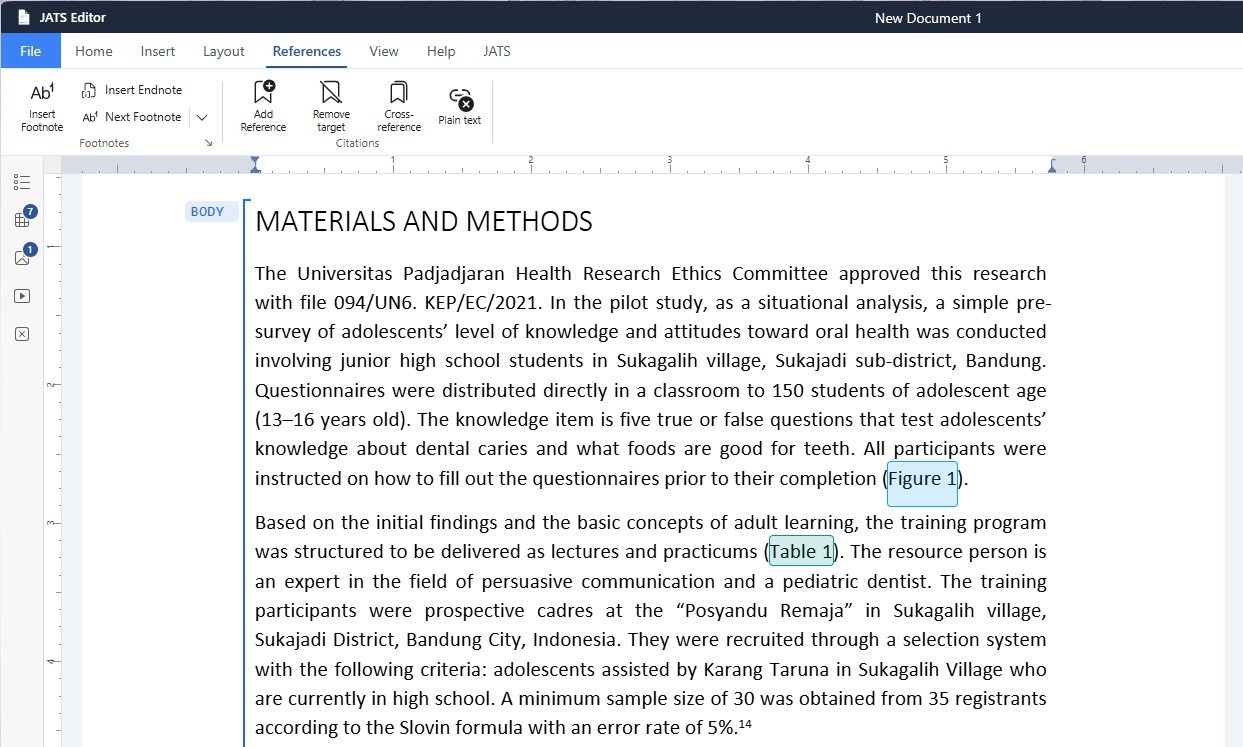
The colored appearance indicates that the text is no longer ordinary text and has been successfully connected to its target.
Cross-references help ensure that relationships between article content and figures, tables, equations, headings, and other elements are represented correctly in the JATS structure.
Adding a Citation to a Bibliographic Reference #
Bibliographic citations are handled through the References panel on the side of the editor. Before creating citations, make sure the article’s bibliography has already been recognized and appears in the Reference List.
1. Select the Citation Text. 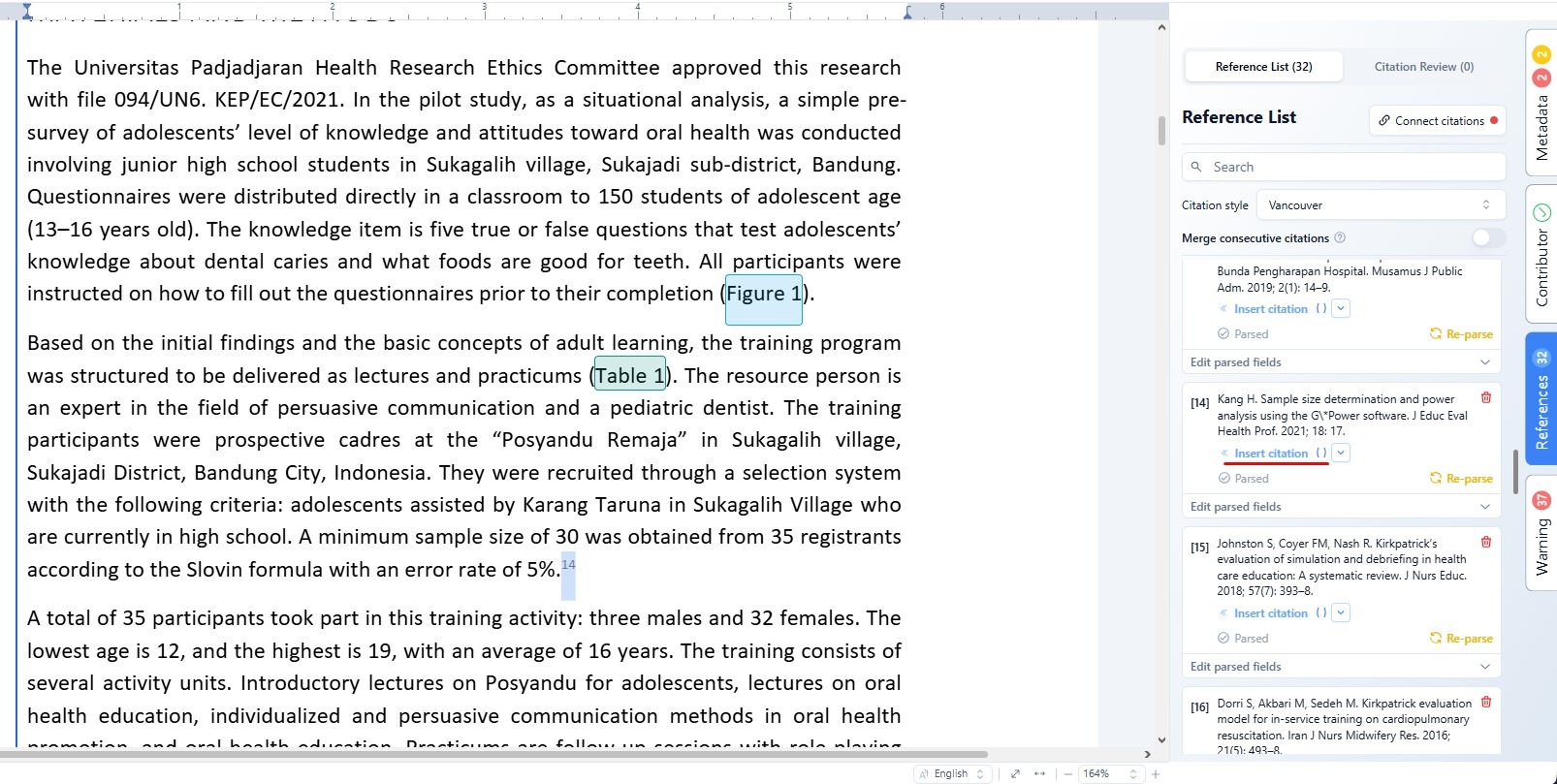
Depending on the citation style, this may be a number such as:
14
or author-based text such as:
Smith et al.
Select the citation text that you want to connect to a bibliographic reference.
2. Open the References panel on the right side of JATS Editor. The panel displays all references that have been recognized from the article’s reference list.
You can use the search field to quickly locate a specific reference.
3. Find the correct bibliographic entry and click Insert citation. JATS Editor will connect the selected citation text to that reference.
For example, a citation displayed as:
14
can now be linked to the corresponding reference entry in the article bibliography.
Confirming the Citation #
Once successfully connected, the citation will appear highlighted in the document. This indicates that the citation has been recognized as a structured reference rather than ordinary text. You can continue the same process for the remaining citations throughout the article.
Reference List and Citation Review #
The References panel can also be used to review citation relationships within the document.
- Reference List displays the bibliography entries that have been recognized by JATS Editor.
- Citation Review can be used to review citation connections and identify citations that may still require attention.
The panel can also provide tools for reviewing or correcting parsed reference information before the final JATS document is generated.
It is recommended to connect all in-text citations and cross-references before exporting the JATS XML. A properly linked document allows JATS Editor to distinguish ordinary text from structured relationships such as citations, figures, tables, headings, equations, and footnotes.


