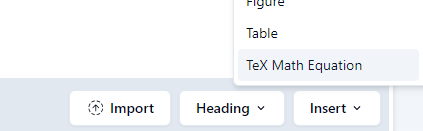
To add mathematical equation in the Body section please click insert, then click TeX Math Equation :
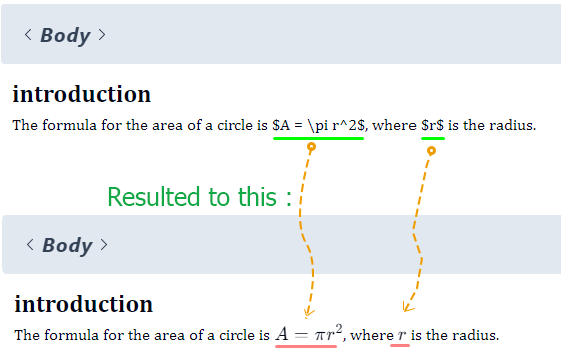
In another method, you can also add anywhere formula (math, physics, chemistry) equation by adding the dollar sign ($) before writing any equation and ended with the dollar sign ($) will be translated to the correct equation or symbol once the cursor moves from that section.
$A = \pi r^2$ adding this into the Body section will turn into the correct mathematical equation once the cursor move out.
For example :
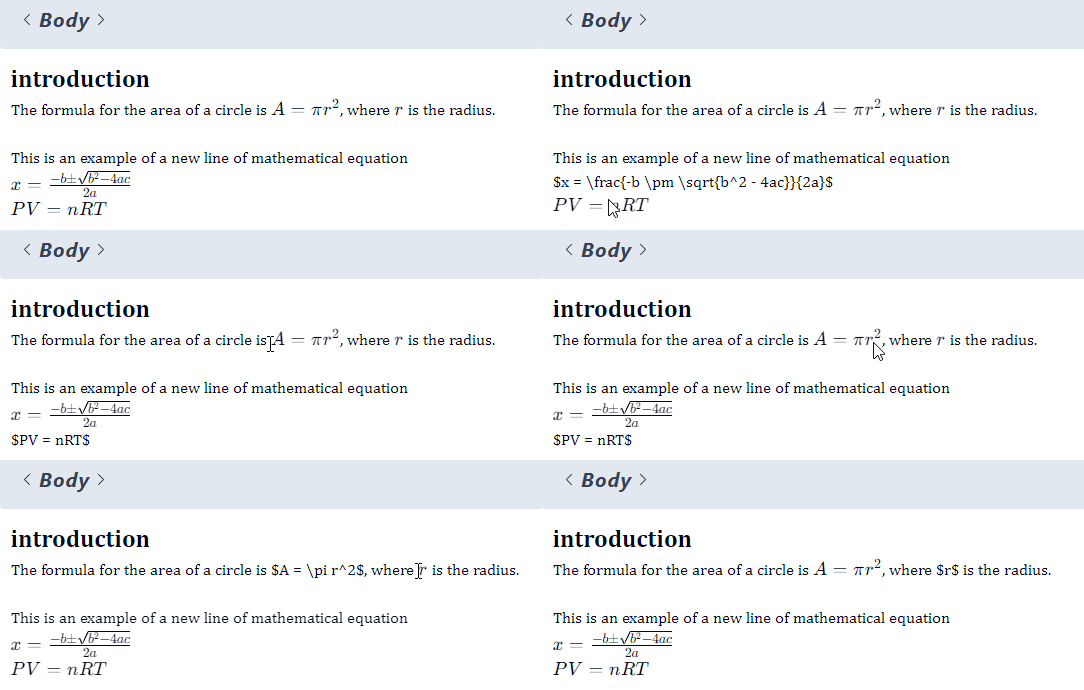
So you can add text math in inline mode or new line mode by using this method.
For example if you want to add in newline in the Body section you can see in this
Note For eLife Lens Plugin in OJS :
In OJS when you have upload the XML and try to view the result using the eLife Lens, it will not show the correct math. We found that the current eLife Lens Plugin have issue when the tex-math in writting in the complete Latex format. As the editor will convert any $xx$ to complete Latex text, this plugin failed to process it. However, this complete format is important in Pubmed validation so we let it out because for publisher it will be more important in validation of the XML (JATS) rather than the viewer. Currently, our team is creating the better viewer for JATS in OJS.
For more detail about this click this link :
https://jatseditor.com/note-for-the-elife-lens-ojs-plugin-viewer/

//This is example the complete Latex that is created by the editor upon exporting a JATS file.
<inline-formula><br><tex-math id="math-1">
<![CDATA[ \documentclass{article} \usepackage{amsmath} \begin{document} \displaystyle SR = \frac{N_t}{N_0} \times 100\% \end{document} ]]></tex-math>
</inline-formula>,
This complete Latex script is not supported in eLife Lens plugin
How to Add Mathematical Equation in JATS Editor & PDF Layout #
1. Open the JATS tab.
Click Inspect to display the JATS tags in the document. Keeping Inspect enabled makes it easier to confirm that the figure has been recognized and tagged correctly.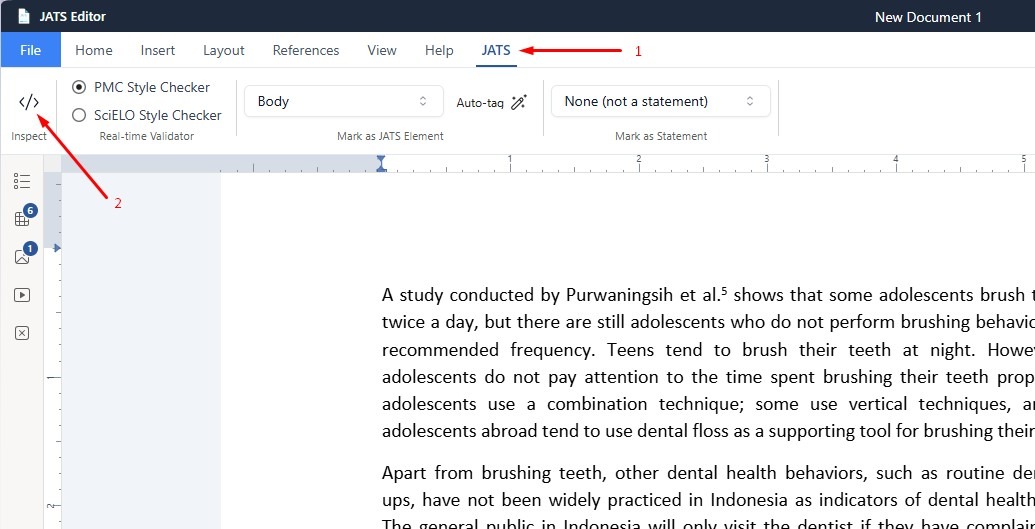
2. Open the Insert tab.
select LaTeX from the Equations & Symbols section. This opens the Insert LaTeX window, where you can enter a mathematical expression and choose how it should appear in the article.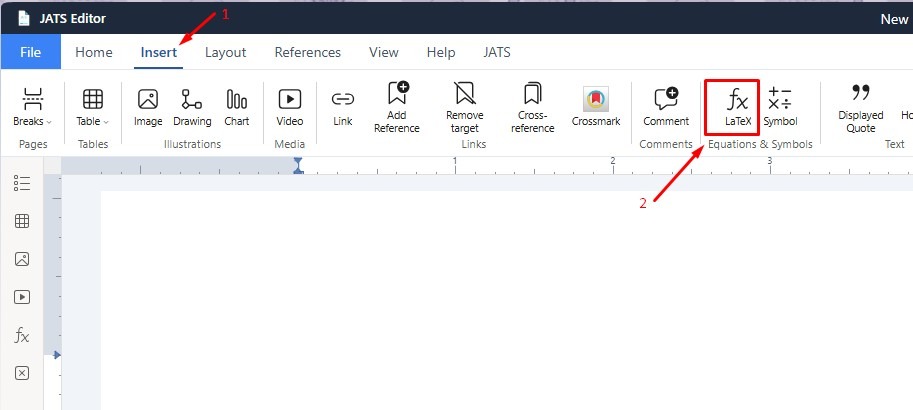
3. Choose the equation type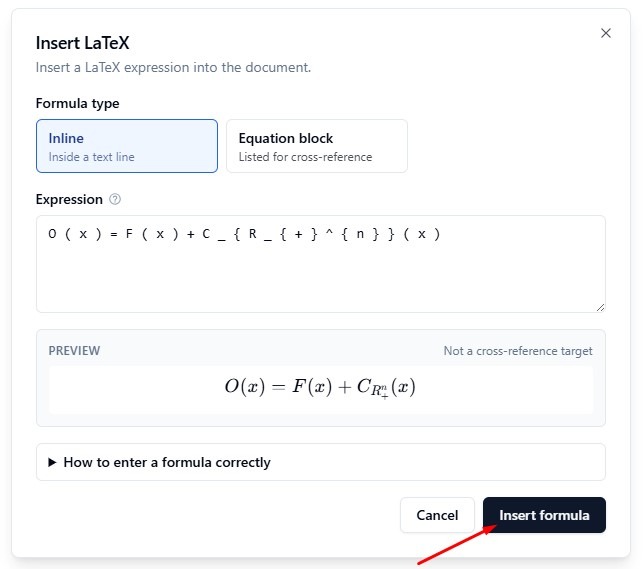
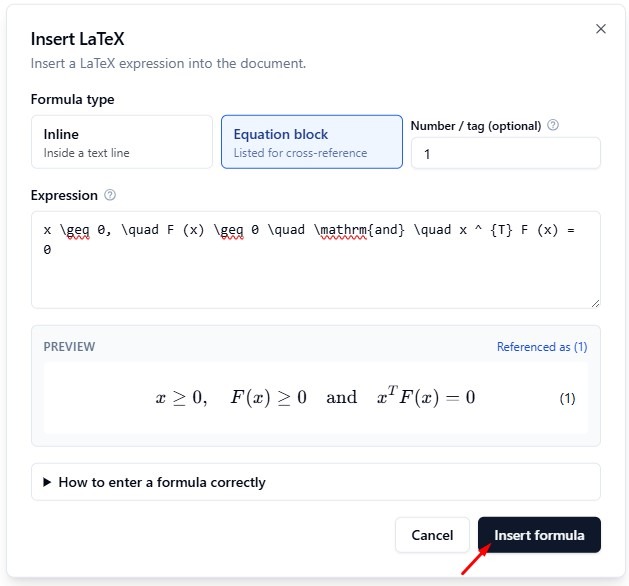
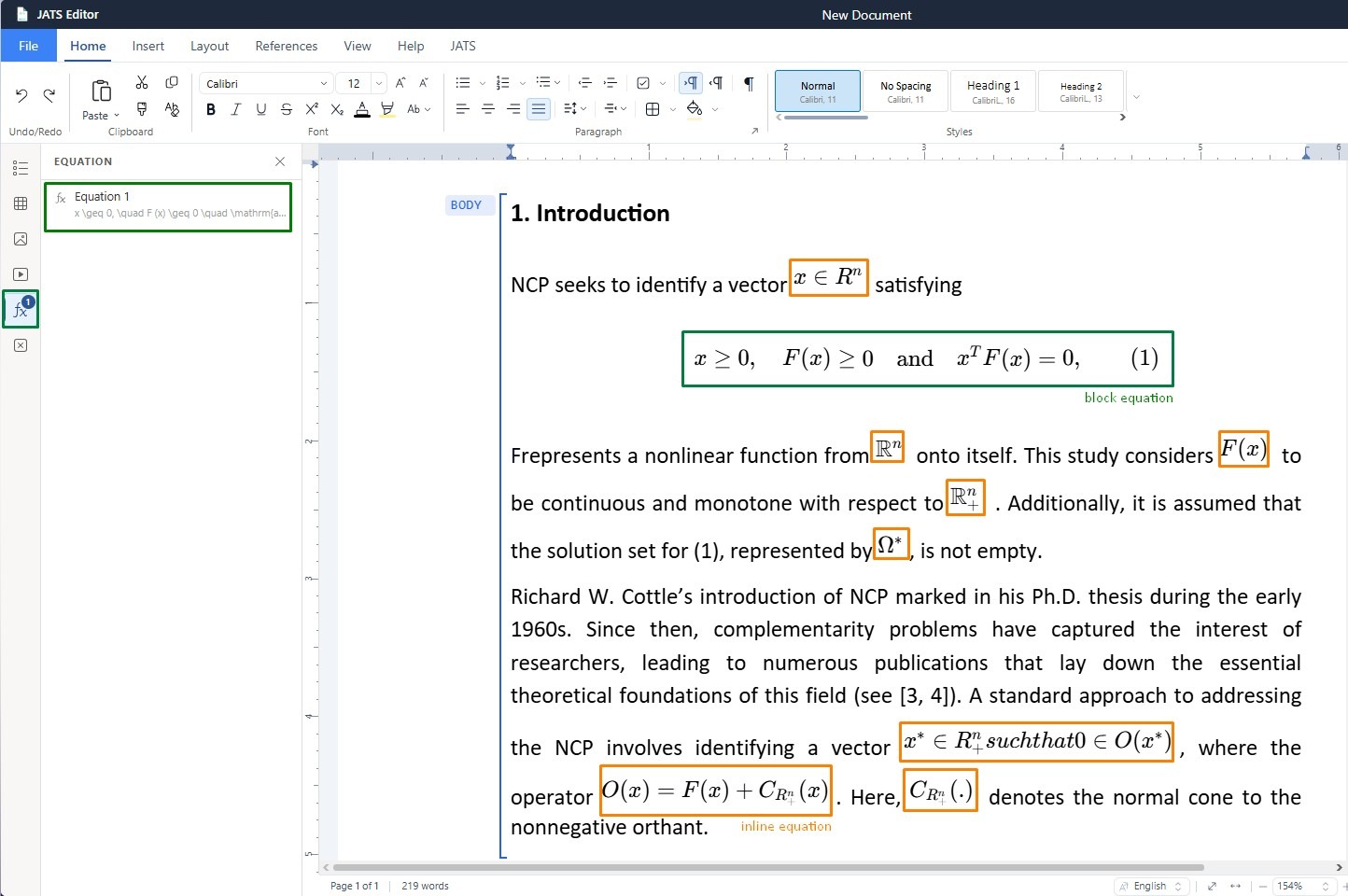
The Insert LaTeX window provides two formula types: Inline and Equation block. Select the type based on the role of the equation in the paragraph.
- Inline equation – Use this option when the formula is part of a sentence or paragraph. The equation stays within the text line and flows with the surrounding words. It is suitable for short expressions, variables, symbols, or formulas that do not need a separate number or citation target.
- Equation block – Use this option when the formula needs to appear as a separate displayed equation. The equation is placed on its own line, can include a number or tag, and is available as a target for cross-reference or citation. After insertion, the equation block can appear in the Equation panel on the left side of the workspace, alongside the document navigation or table of contents. This makes it easier to find the equation without searching through the entire article.
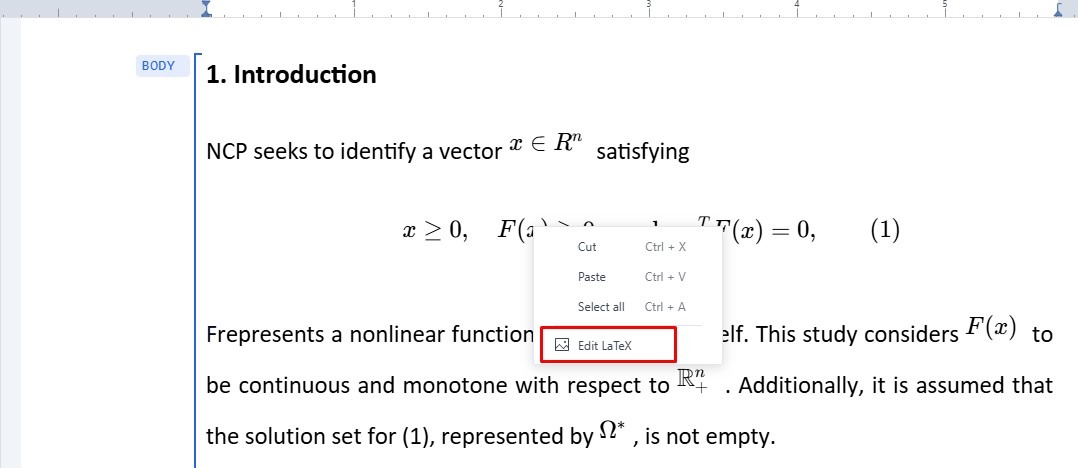
What if I’ve entered the equation incorrectly and want to edit it? #
It’s as simple as right-clicking on the equation you want to edit, then clicking Edit LaTeX