
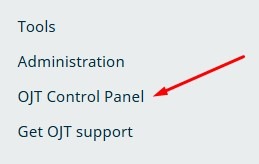
1. You can go to OJT Control Panel > JATS Editor Plugin
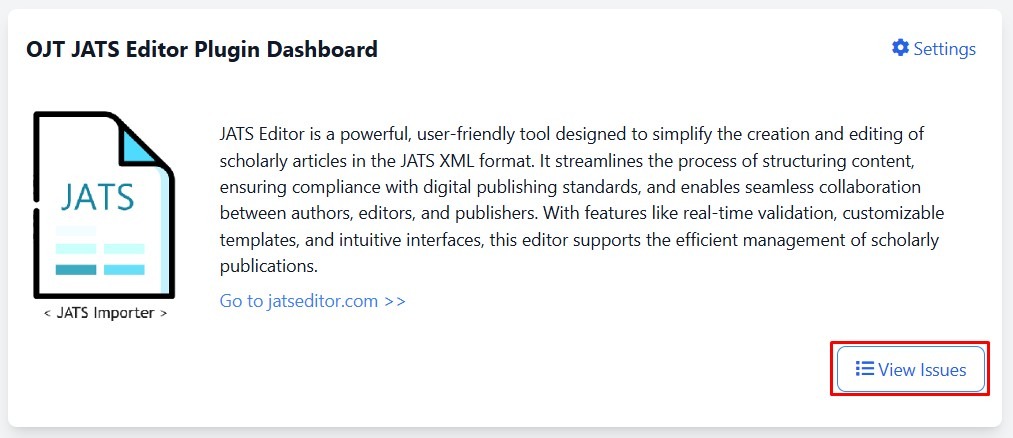
2. Open the JATS Editor plugin in your OJS dashboard. On the plugin dashboard, click View Issues to display the journal’s issues.
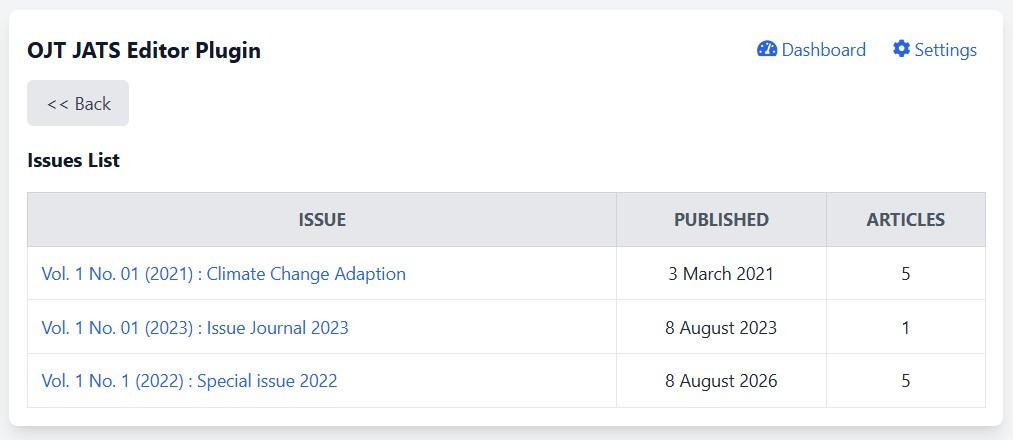
3. In the Issues List, locate the issue containing the article you want to upload the JATS XML galley to. Click the issue title to open its article list.
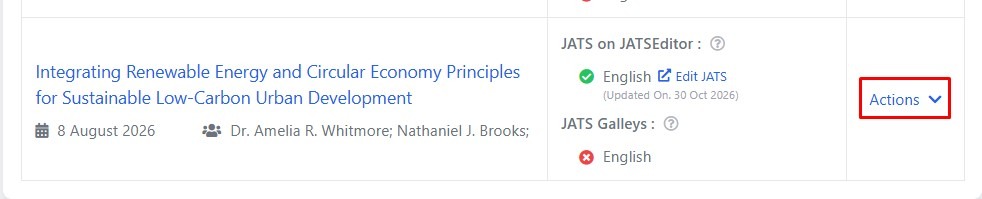
4. Locate the relevant article within the selected issue. Check the article title and author information to confirm that you have selected the correct article.
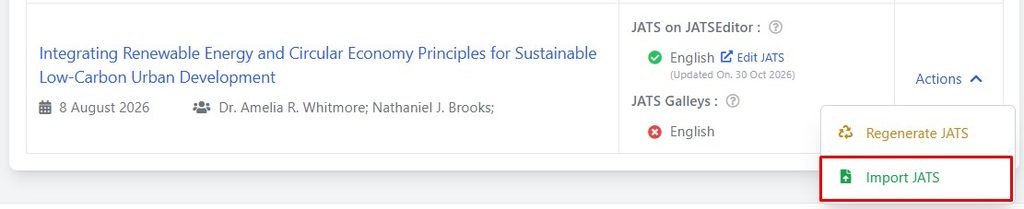
Click Actions on the right side of the article’s row.
5. In the Actions menu, click Import JATS.
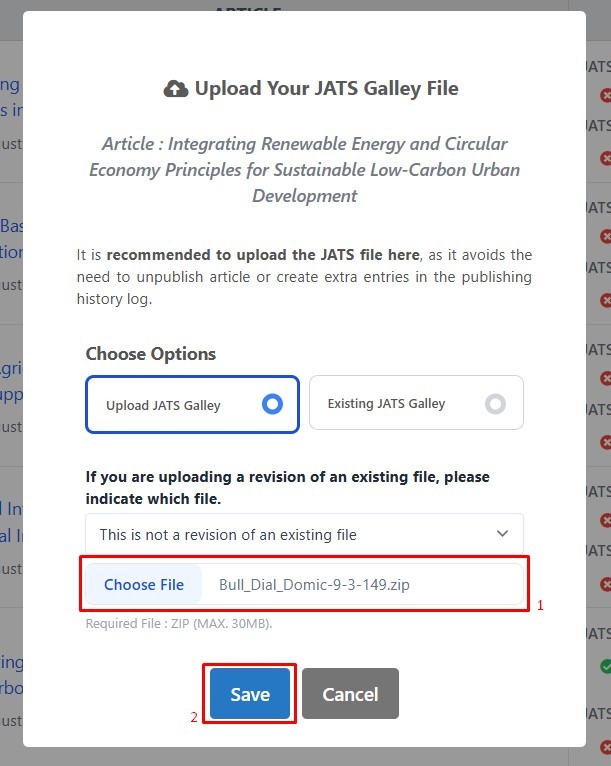
The pop up window will appear. Check the article title displayed in this window before continuing.
6. Click Choose File and select the article’s JATS ZIP package from your computer. Click Save to submit the selected JATS ZIP package.
A document being available in JATS Editor does not, by itself, confirm that its XML galley has been uploaded to OJS. After saving, check JATS Galleys to verify the upload.


